

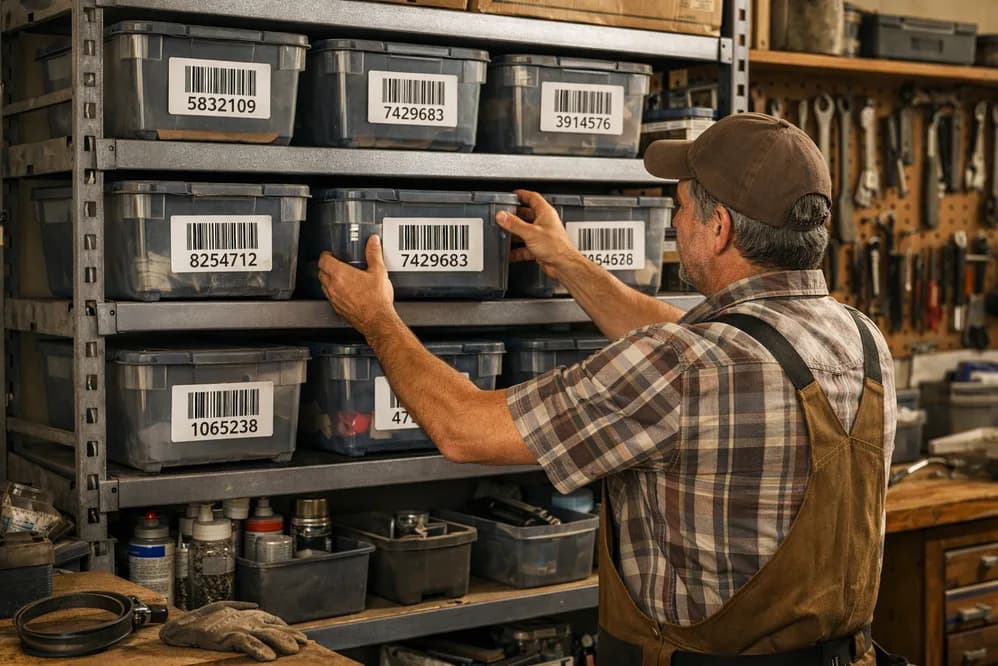
Are you standing in front of your shelf searching for M6 hex bolts for the tenth time? Is your warehouse a chaos of illegible post-its, faded marker notes, and makeshift labels that blow away at the first breeze?
Thousands of tradespeople, small online retailers, and workshop operators know this problem: Without proper shelf labels, you waste valuable time every day searching, order items twice, and lose track of your inventory.
The good news: Professional shelf labels for small warehouses are neither expensive nor complicated. With the right software, suitable material, and a well-thought-out numbering system, you can bring order to your warehouse in just 30 minutes.
Who is this guide for?
This guide is aimed at small warehouses with fixed storage locations (trades, workshops, maintenance).
Typical scenario:
- M6 screws are always at bin location A-1-1-1
- Cable clamps always at location B-2-3-4
- Rearranging happens 1-2 times per year (or never)
Not suitable for:
- E-commerce with daily changing items
- Fulfillment centers with flexible storage
In this guide you'll learn:
- Which label material suits your environment
- Whether you need one or two labels per item/bin location
- Which 3 free tools you can use immediately
- How to build a unique numbering system
- How to use QR codes and barcodes correctly
Time required: 30 minutes | Costs: Under $20 | Time saved: 10-30 minutes daily
Let's get started.
What Label Material Do I Need for My Warehouse?
Not every label works everywhere. Here's a decision guide:
- Humid environment (basement, workshop with splash water)?
- Then: Film labels, because waterproof, tear-resistant, durable
- Example: Avery Zweckform L4773 (63.5×29.6mm, polyester)
- Frequently rearranging or seasonal items?
- Then: Magnetic labels without adhesive residue, reusable
- Example: Magnetic warehouse labeling (100×50mm)
- Only dry indoor space + rarely any changes?
- Then: Paper labels, because cheapest option and completely sufficient
- Example: Avery Zweckform 70x36-R (70×36mm, 1200 labels for ~$20, often cheaper on Amazon)
My recommendation for 90% of small warehouses:
Paper labels from Avery. Cost almost nothing, can be printed with any laser printer, and are perfectly fine for dry indoor spaces.
One or Two Labels? What Fits Your Warehouse?
In practice, two approaches have proven successful:
Option 1: Only Combo Label (easiest)
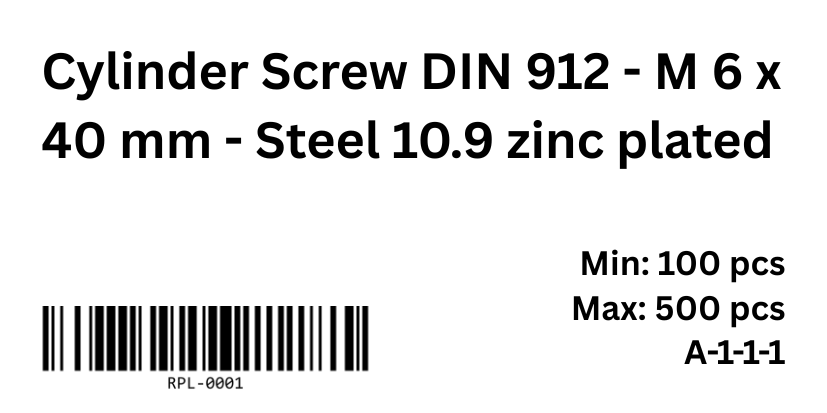
One label contains all important information such as:
- Bin location: A-1-1-1
- Item name: Socket Head Cap Screw DIN 912 M6 × 40 mm
- Optional: Barcode/QR code, internal item number, supplier name, photo, etc.
Advantages:
- Quick and cheap (one label per location)
- Clear with few shelves
- Less printing effort
Ideal for:
- Small warehouses
- Few shelves in the workshop
- Shelves directly at the workplace
Here's what a minimalist combo label can look like:
Option 2: Large Bin Location Label + Combo Label
Two labels side by side:
- Large bin location label (e.g., 100×50mm), label should ideally be as tall as your shelf level allows.
- Only "A-1-1-1" in large font
- Readable from 10-13 feet away
- For quick orientation in the aisle
- Combo label next to it (e.g., 70×35mm). Label should ideally be as tall as your shelf level allows.
- Item: Socket Head Cap Screw DIN 912...
- Barcode: WHS-0001
- Minimum stock: 100
- For details when removing
Advantages:
- Bin location recognizable from a distance (e.g., from the tool cart)
- Clear separation: Where is it vs. What is it
- Professional look, even when customers enter the warehouse
Ideal for:
- Small to medium warehouses
- Multiple shelf rows (3+ shelves)
Decision guide:
| Criterion | Only Combo Label | Two Labels |
|---|---|---|
| Main advantage | Minimal effort | Faster orientation |
| Search time | You know your warehouse by heart | "Where was C-3-3-2?" → Visible from 10-13 feet |
| Frequency in warehouse | Daily, everything familiar | Occasionally or changing people |
| Shelf setup | Compact, manageable | Multiple aisles/shelf rows |
| Cost per bin location | few cents | few cents |
| Print time | 30 min for 50 bin locations | 45 min for 50 bin locations |
Practical tip: Start with Option 1 (combo label), if that's not enough, you can retrofit the second label with the bin location.
When should you expand to Option 2?
If you notice:
- I'm searching too long or the apprentice constantly asks: "Where is C-3?"
📋 Quick Check: Do I Need Item Names on the Label?
✅ YES, if:
- Employees should be able to work without app/scanner
- Items remain permanently in their locations
- Prevents picking errors
Recommended for 90% of trade businesses
❌ NO, only bin location ID, if:
- Items change weekly/daily
- Pure software-controlled warehouse management
- E-commerce with flexible chaotic storage
Important: Only relevant for larger, dynamic warehouses
How Do I Name My Bin Locations?
Before printing labels, you need a unique system for your bin locations, which is why we'll briefly address the topic here.
The Shelf-Level-Bin-Position System
Standard format: Shelf - Level - Bin - Position
Example:
- A-1-1-1 = Shelf A, Level 1, Bin 1, Position 1
- B-2-3-2 = Shelf B, Level 2, Bin 3, Position 2
Important: Always read shelves from top to bottom and on levels/tiers from left to right
How Do I Number My Shelves?
| Method | Example | When to use? |
|---|---|---|
| Letters (A, B, C...) | A-1-1-1, B-2-3-4 | Few shelves (up to 10) |
| Numbers (1, 2, 3...) | 1-1-1-1, 2-2-3-4 | Many shelves or multiple rooms |
| Room + Shelf (R1-A, R2-B...) | R1-A-1-1-1 | Multiple storage rooms |
Important: Every Bin Location Needs a UNIQUE ID!
Why?
- You can assign items to unique bin locations
- Helpful for communication with colleagues (Wago connector can be found at C-1-3-4)
- Creates foundation for many apps
Example
Shelf A, Level 1, Bin 1 → Bin location name: A-1-1-1
Shelf A, Level 2, Bin 1 → Bin location name: A-2-1-1 (uniquely distinguishable!)
Which Software Is Suitable for Shelf Labels?
You don't need expensive programs. Here are 3 free tools you can start with immediately:
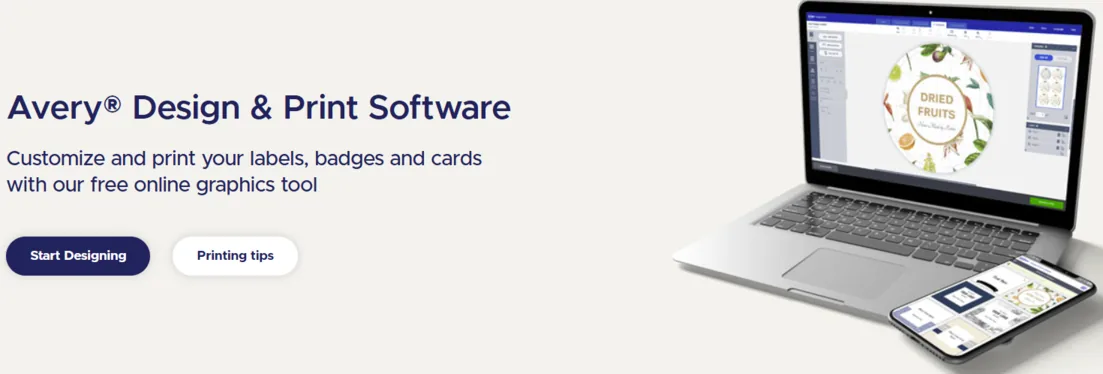
Tool 1: Avery Design & Print - our test winner for beginners ⭐⭐⭐
Why Avery?
- Completely free, no registration
- Works directly in the browser
- Excel import with automatic mail merge
- Perfectly matched to Avery label sheets
- With serial barcode generation or conversion of data to Code-128 barcode
Here's how in 5 minutes:
- Buy label sheets
- Search on Amazon for: Avery Zweckform 70x36-R (70×36mm, cost: ~$20 for 1200 labels)
- Prepare Excel list
- Download our free Excel template for shelf labels or export your items from an existing app as CSV/Excel file
- Open Avery website
- avery-zweckform.com/design-print
- Enter product number of your chosen sheets. In our example: 70x36-R
- Upload Excel
- Select "Mail merge"
- Upload Excel file
- Check preview: Everything correct?
- Print
- Export PDF
- Laser printer (no inkjet printer!)
- First 1 test sheet on regular paper!
Practical tip: Print test sheet on regular paper, hold it over label sheet and check against the light. Does everything fit? Then print all labels.
Tool 2: Labeljoy For Power Users (Windows) ⭐⭐
Why Labeljoy?
- Start is free, but with watermark, later paid
- Automatic sequential numbering
- Barcode AND QR code generator
- CSV/Excel import for mass printing
Here's how:
- Download: labeljoy.com → Free Version
- Select label size: "New Label" → Select Avery 70x36-R
- Set up sequential numbering or select column from Excel
- "Insert Text" → Enter "A"
- "Insert Counter" → Start value: WHS-0001, Increment: +1
- Result: WHS-0001, WHS-0002, WHS-0003 ... automatically!
- Optional: Add barcode
- "Insert Barcode" → Type: "Code 128" or "QR Code"
- Link with Counter → each label unique
- Print: Check preview → Print on label sheet
Tool 3: Canva For nicer designs ⭐
Why Canva?
- Free version is completely sufficient
- Professional design templates
- QR code and barcode generator integrated
- Intuitive operation
Here's how:
- Search template
- Open Canva → Search "Label" → Filter "Free" + 70×35mm
- Customize
- Change text: "A-1-1-1", "Socket Head Cap Screw DIN 912 - M6 x 40 mm - Steel 10.9 galv. zinc plated"
- Insert QR code or barcode: Apps → "QR Code" → Enter "WHS-0001"
- Adjust colors (e.g., red for hazardous materials, blue for office supplies)
- Export
- Export as PDF
- Print on Avery sheet
Disadvantage: No automatic Excel import in the free version, each label must be created separately, which is very time-consuming
Advantage: Your labels look professionally made
Which Tool Fits Me?
| Tool | Best for | Excel Import | QR Code | Barcode | Costs | Learning Curve |
|---|---|---|---|---|---|---|
| Avery Design & Print | Quick start and free | ✅ Yes | 🚫 No | ✅ Yes | 💰 $0 | 🕒 5 Min |
| Canva | Quick designs | 🚫 Manual | ✅ Yes | ✅ Yes | 💰 $0 | 🕒 10 Min |
| Labeljoy | Many labels and professionalization | ✅ Yes (CSV) | ✅ Yes | ✅ Yes | 💰 $0 | 🕒 25 Min |
My recommendation: Avery Design & Print due to simple operation and conformity with label sheets
Learn more about efficient warehouse management for trade businesses in our comprehensive guide.
Using Barcodes and QR Codes Correctly
Now you have:
- ✅ Defined bin location IDs (e.g., A-1-1-1)
- ✅ Selected software (e.g., Avery, Excel, Labeljoy, Canva, etc.)
Now we'll continue and you'll learn how incorporating barcodes can simplify daily work.
Why Barcodes on Labels?
Barcodes make bin locations or items uniquely identifiable, so people and software always refer to the same object. They replace error-prone reading and typing with a quick scan. In software and apps, barcodes are linked with inventory, items, and minimum quantities, so withdrawals are immediately recorded and reorders can be reliably triggered.
Without barcode:
- Type bin location A-1-1-1 in app → typo possible
- With 100 items: lots of manual work → waste of time
With barcode:
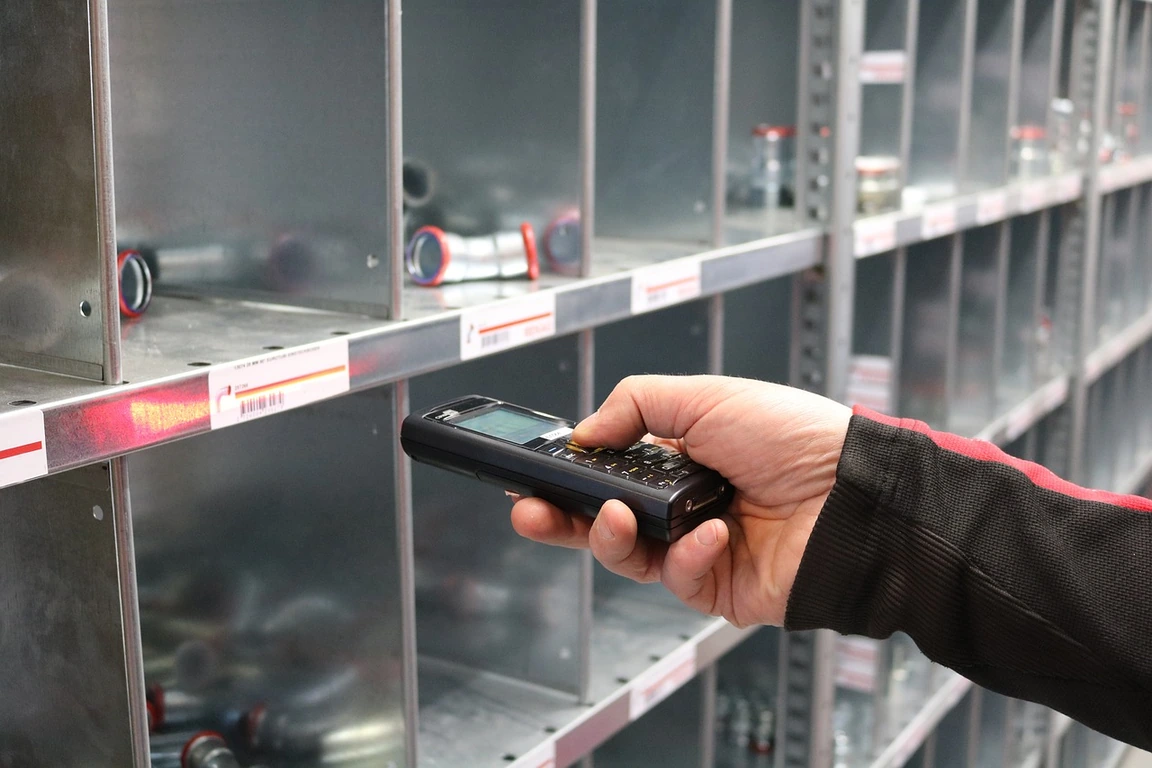
- Scan via app or barcode scanner → automatically captures correct ID
- Postings within seconds
The most important rule: One unique barcode = One bin location!
Example WRONG:
Barcode "WHS-0001" for A-1-1-1
Barcode "WHS-0001" for B-2-2-2  ❌ NOT unique!
Example CORRECT:
Barcode "WHS-0001" → A-1-1-1
Barcode "WHS-0002" → A-1-1-1
Barcode "WHS-0003" → A-1-1-2
Barcode "WHS-0004" → B-2-2-2
Important: Multiple items and barcodes can also be assigned to one bin location. This is the case in practice when low-volume items share a container through separation using dividers (ferrules, etc.).
Can I Combine Item Name AND Barcode?
YES! This is even recommended:
||||||||||||||||||
[Barcode WHS-0001]
Socket Head Cap Screw DIN 912 M6 × 40 mm
A-1-1-1
Why both?
- Barcode → for software, orders, inventory postings and stocktaking
- Item name → for quick finding without scanner
Important: The barcode stores ONLY an ID (e.g., "WHS-0001"). The ID is married to an item in the software and can be assigned and posted through it. A barcode does NOT store the item name. The name is only visually printed on the label.
How Do I Plan My Label System Correctly?
Step 1: Analyze Warehouse Layout
Take 10 minutes and sketch your warehouse by answering the following questions:
- Which shelves are most frequently accessed?
- Where do you need larger labels (visible from a distance)?
- Which areas need color codes (e.g., hazardous materials)?
Tip: Take a photo of each shelf. Then you'll know exactly how many labels you need later.
Step 2: Define Numbering System
Simple variant (for 1–3 shelves):
The letters stand for the shelves (A, B, C), the numbers for the positions from left to right and top to bottom within the shelf.
A1, A2, A3 ... A10
B1, B2, B3 ... B10
C1, C2, C3 ... C10
Professional variant (for larger warehouses):
Here each bin location is uniquely described by Shelf – Level – Bin, which creates overview with multiple shelf rows or heights. Within a shelf, numbering is consistently from left to right and from top to bottom, so every location remains logically findable.
Shelf - Level - Bin
A-1-01 (Shelf A, Level 1, Bin 01)
A-2-03 (Shelf A, Level 2, Bin 03)
B-1-05 (Shelf B, Level 1, Bin 05)
Important: Once defined, DON'T change anymore! Otherwise your records won't match.
Step 3: Define Color Codes (optional)
Colors help quickly distinguish areas:
| Color | Meaning | Example |
|---|---|---|
| 🔴 Red | Hazardous materials | Chemicals, cleaners |
| 🔵 Blue | Office supplies | Paper, pens, folders |
| 🟢 Green | Shipping / Packaging | Boxes, tape |
| 🟡 Yellow | Frequently used | Screws, dowels |
| ⚫ Black | Tools | Drills, cordless screwdrivers |
Which Printer to Use and How to Apply Labels Correctly?
Which Printer Is Best for Labels?
- Commercial Laser Printer (Recommended):
- ✅ Waterproof, smudge-proof
- ✅ Sharp, even with small font
- ✅ Cheap to maintain
- Inkjet Printer (Not recommended):
- Smears when exposed to moisture
- Fades faster
- More expensive due to cartridges
- Label Printer (for professionals):
- Brother P-Touch Cube (around $60) Bluetooth, app control
- DYMO LabelWriter 450 (around $95) Thermal printing, no toner needed
Positioning and Adhesion
Where to apply?
- Always at eye level (4.6-5.2 feet)
- For tall shelves: Labels on the front edge of each shelf level
- Additionally: Large number on the shelf side (visible from a distance)
Before sticking:
- Wipe shelves with alcohol or cleaner
- Let dry (2 minutes)
- Press label firmly
Tip: For rough surfaces (wood, concrete), use magnetic labels or clear sleeves with cable ties
Which Mistakes Should I Avoid When Printing Labels?
Mistake 1: Font Size Too Small
- Wrong: 8pt font, not readable from 6 feet
- Right: At least 18pt for shelf numbers, 12pt for details
Mistake 2: Duplicate QR/Barcodes
- Wrong: Code "WHS-0001" used multiple times in warehouse
- Right: Code "WHS-0001" only 1x, linked to Socket Head Cap Screw DIN 912 - M6 x 40 mm - Steel 10.9 galv. zinc plated
Mistake 3: Crooked Application
- Wrong: Labels crooked, unprofessional
- Right: Use shelf edge as orientation
Mistake 4: Inkjet Printer for Workshop
- Wrong: Ink printing smears when exposed to moisture
- Right: Use laser printer or film labels
Mistake 5: Too Many Color Codes
- Wrong: 10 different colors, nobody understands
- Right: Maximum 5 colors, clearly defined, otherwise just leave white!
Sustainable and Reusable Label Solutions
Environmentally Friendly Materials
Paper labels from recycled material:
- FSC-certified (e.g., Avery Recycled line)
- Biodegradable adhesives
- Cheap and perfectly fine for indoor spaces
Reusable magnetic labels:
- No adhesive, no residue
- Multiple labeling (with wipeable marker)
- Perfect for seasonal items
Wipeable plastic labels:
- Label with foil pen
- Wipe off with alcohol and relabel
- More durable than paper
How Do I Keep My Label System Efficient Long-term?
A good label system is not a one-time action - it lives from maintenance and updates.
1. Regular Control
- Every 3 months: Check labels for readability
- After each rearrangement: Update labeling
- When damaged replace immediately (otherwise chaos creeps in)
2. Inventory-friendly Structure
Read a shelf like a book! Number systematically from left to right, top to bottom:
Example Shelf A:
[A1] [A2] [A3]   Top level
[A4] [A5] [A6]   Middle level
[A7] [A8] [A9]   Bottom level
This way you can simply count through during annual inventory without jumping back and forth.
3. Employee Training
Invest 15 minutes per new employee:
- Explain the numbering system
- Show the color codes
- Demonstrate scanning (if QR codes/barcodes are used)
Checklist as notice:
✅ Item removed? Track in software/APP/Excel
✅ New item? → Print new label
✅ Damaged label? → Reprint immediately
4. Documentation
Record your system in writing:
- What do which color codes mean?
- How is the numbering structured?
- Where are label blanks and printers?
Tip: Use software like repleno to cleanly link bin locations, items, and movements, simplify the workflow, and digitize your warehouse. Alternatively, an Excel file with all bin locations and their contents is sufficient, so the system remains traceable and stable even with staff changes.
Digital Warehouse Management: The Next Step
You now have a functioning label system. Great!
When your warehouse grows (50+ items), it's worth connecting with warehouse management software (WMS):
- JTL-Wawi (free for small shops)
- Lexware Warehouse Management (from $25 per month)
- repleno (especially for trade businesses, automated reordering, from $25 per month)
These systems can often automatically generate labels with barcodes/QR codes and track inventory in real-time.
But: That's a separate topic. For the start, Excel + labels is completely sufficient.
Free Templates and Tools for Download
You don't need design skills! Get ready-made templates:
- Canva: Search "warehouse label" → Hundreds of free templates
- Avery Zweckform: Filter by product number
- Herma Design Software: Free desktop software
Summary: Your Checklist
✅ Get material: Avery 70x36-R labels + commercial laser printer
✅ Choose software: Avery Design & Print (beginners) or Labeljoy (power users)
✅ Numbering system: A1-A10 or more detailed A1-1-1
✅ Optional color codes: Max. 5 colors, clearly defined
✅ QR codes/Barcodes: Only with unique bin location ID (not product name!)
✅ Test print: First on paper, then on labels
✅ Application: Eye level, clean surface, press firmly
✅ Documentation: Excel list with all bin locations
✅ Scaling: Use specialized software later
Next Step: Get Started Now!
You now know everything you need:
- 3 free tools
- Unique numbering system
- Concrete product recommendation
- Step-by-step instructions
Time required: 30 minutes for your first labeled shelf.
Costs: Under $20 for labels.
Time saved per day: 10-30 minutes that you no longer have to search.
Good luck!